
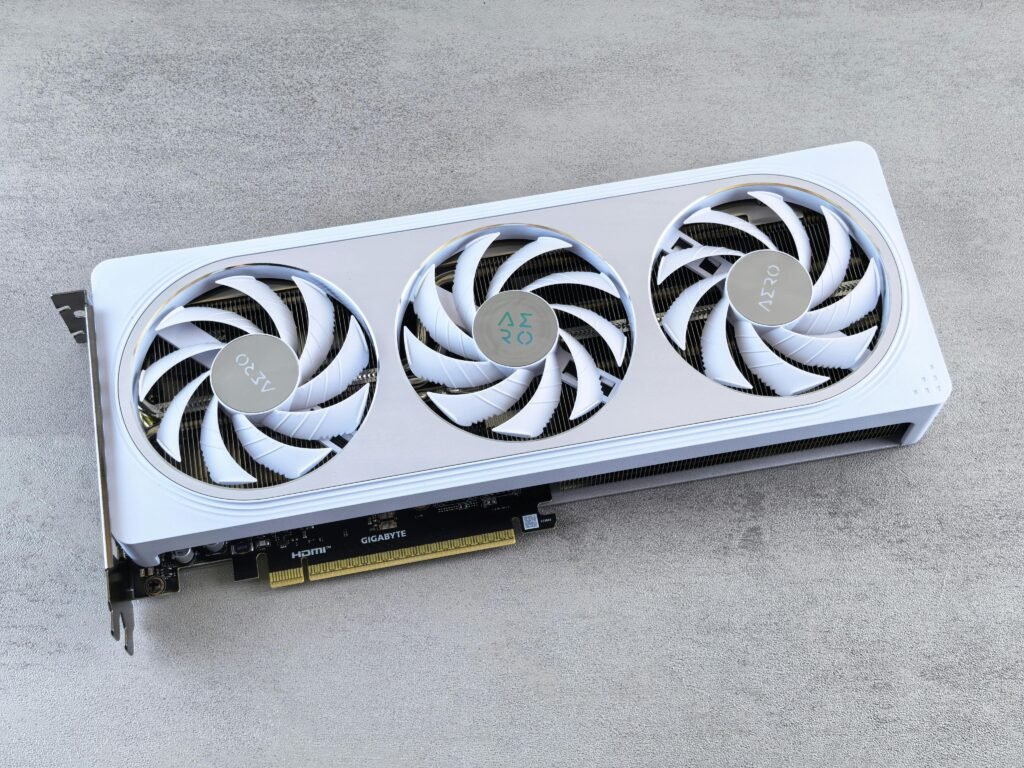
A stubborn graphics driver that refuses to update can bring your whole system to a halt—but there are reliable fixes you can try before calling in the pros at Macc Tech Repairs in Macclesfield. This guide walks you through the most effective solutions, with trusted resources and clear steps to get your GPU running smoothly again.
🖥️
A practical, friendly guide from your local tech specialists at Macc Tech Repairs, Macclesfield.
When a GPU driver won’t update, it’s usually caused by one of a few common issues: background processes blocking installation, corrupted files, incompatible versions, or Windows Update interfering. Below is a clean, structured breakdown of what to try—and when to hand it over to a technician.
1. Restart and Try Again
It sounds basic, but a reboot clears locked files and stalled update processes.
- Close all apps, especially games and video tools.
- Restart your PC and retry the update.
2. Check Windows Update
Windows may be installing something in the background, which can block GPU drivers.
- Go to Settings → Windows Update
- Install any pending updates
- Reboot and try again
3. Use the Official Driver Installer
NVIDIA Users
NVIDIA notes that background programs or Windows Update can cause installation failures. Their official clean-install guide is extremely helpful.
- NVIDIA clean install instructions: NVIDIA app driver installation failed. How do I manually clean install the NVIDIA driver for my graphics card? | NVIDIA
AMD Users
Use the AMD Adrenalin installer and choose Factory Reset if needed.
Intel Users
Use the Intel Driver & Support Assistant for automatic detection.
4. Update Through Device Manager
A simple method that works for many users:
- Right‑click Start → Device Manager
- Expand Display adapters
- Right‑click your GPU → Update driver
A full walkthrough of multiple update methods (Device Manager, manual, automatic) is available here:
- Driver update methods: ****
5. Perform a Clean Install
If the installer keeps failing, a clean install removes corrupted files and resets the driver environment.
For NVIDIA
Their official clean-install guide explains how to:
- Close interfering apps
- Use the latest Game Ready Driver
- Perform a clean reinstall
- NVIDIA clean install guide: ****
For AMD
Use the AMD Cleanup Utility before reinstalling.
6. Use a Third‑Party Tool (Safe Options Only)
Tools like Driver Easy can automatically detect and install the correct driver.
- Driver Easy update guide: ****
7. Check for Hardware‑Related GPU Problems
Sometimes the issue isn’t the driver—it’s the GPU itself.
Common symptoms include:
- Black screens
- Visual artifacts
- Overheating
- System freezes
A helpful breakdown of common GPU problems and fixes:
- GPU troubleshooting guide: ****
If you’re seeing any of these symptoms, it may be time for a professional inspection.
🛠️ When to Contact Macc Tech Repairs (Macclesfield)
If you’ve tried the steps above and your driver still won’t update, the issue may involve:
- Deep driver corruption
- Failing GPU hardware
- Power delivery issues
- BIOS conflicts
- Windows registry damage
That’s where Macc Tech Repairs comes in.
As a local Macclesfield repair service, you can bring your PC or laptop in for:
- Full GPU diagnostics
- Driver repair and clean installation
- Thermal cleaning and repasting
- Hardware testing and replacement
- System optimisation
You’ll get friendly, expert help—without the jargon.
🔗 Useful Links (All Verified Sources)
| Purpose | Link |
|---|---|
| NVIDIA clean install guide | NVIDIA app driver installation failed. How do I manually clean install the NVIDIA driver for my graphics card? | NVIDIA |
| Multi‑method driver update guide | How to Update Graphics Driver in Windows 11/10/8/7 – Driver Easy |
| General GPU problem troubleshooting | The most common GPU problems and how to fix them – Digital Trends |
| How to update graphics drivers (Windows & Mac) | Update Your Graphics Drivers on Windows or Mac: 6 Easy Ways |